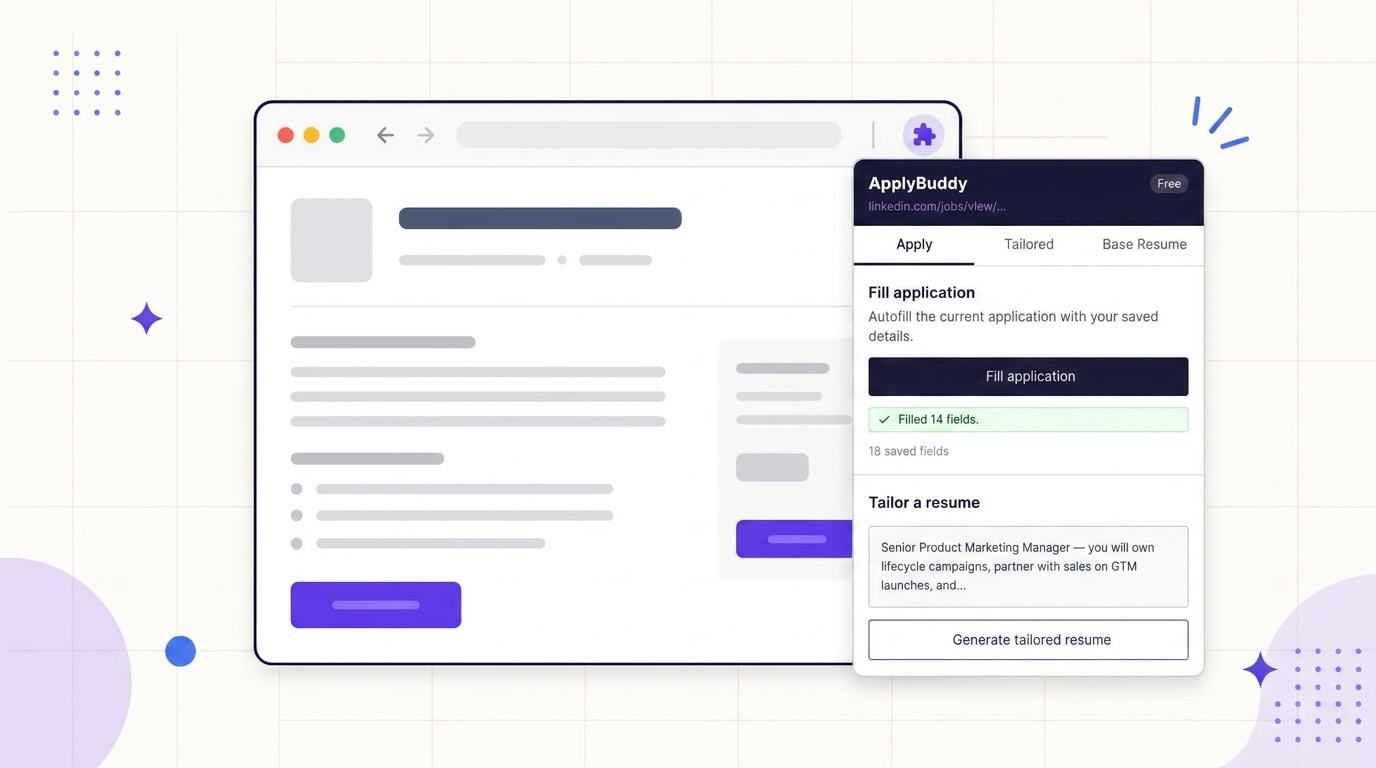
Greenhouse and Lever applications often put contact details, document uploads and employer questions on one page. Even a short form can require more attention than the number of fields suggests.
Autofill helps with repeated details. It does not remove the need to choose the right resume, read the questions and check the completed application. The employer controls which fields appear, so the exact result varies from one posting to the next.
This guide explains what to expect from the free ApplyBuddy Chrome extension and where you still need to take over.
First, the resume
Start on the posting. Open the extension and check the detected job description; paste the full text if anything is missing. Pick your base resume and generate a tailored draft, then inspect the edits report and the PDF. Download the version you want to attach. The resume and the form answers both deserve attention.
For feedback on your existing draft before installing the extension, try the free resume review. Reviewing a base resume and tailoring it to a particular posting are separate steps. Free accounts include one tailored resume per account; other AI usage limits apply.
Greenhouse: what fills, what does not
A standard Greenhouse application has three parts: the contact block, the uploads and links, and the company’s custom questions, followed by a voluntary self-identification section.
Some companies embed the Greenhouse form in a frame on their own careers page. The extension only reads the top-level page, so it cannot fill an embedded form, and the panel reports that it found no matching fields. If the company also lists the job on its Greenhouse job board, apply from there.
Common fields the extension can fill when matched:
- First name and last name
- Phone
- LinkedIn profile
- Website or portfolio, where the form has a field for it
Left for you:
- Resume upload. File inputs are not filled. Attach the reviewed PDF, or follow the employer’s accepted alternative. Check the filename and any parsed fields afterward.
- Location and other suggestion pickers. On newer Greenhouse forms, Location (City) and many yes/no questions are often suggestion pickers, not standard dropdowns. The extension can type a matching value into one and count it as filled without choosing an option. Pick the option yourself and check that it stays selected.
- Cover letter upload. Same rule. If the posting wants one and you have a letter, run it through the free cover letter review before you attach it.
- Custom questions. Read every answer, even when filled. Saved salary expectations or matching custom answers can fill supported text boxes and standard dropdowns. Dropdown matching is not limited to exact text matches, so confirm the selected option. Radio buttons and checkboxes are skipped; unmatched questions remain blank.
- Work authorization and sponsorship. Greenhouse forms usually put these among the custom questions. Recognized wordings, such as “legally authorized to work” or “require sponsorship”, are skipped on purpose even when your profile holds the answer. Other wordings, such as “eligible to work”, can be filled from a matching saved custom answer, so check each one.
- Voluntary self-identification. Review these questions yourself and use the choices offered by the form. Radio buttons and checkboxes are skipped, but there is no blanket block on every demographic text field or dropdown. A matching custom profile answer can fill those controls.
The panel reports how many fields were filled. Treat that as a count of actions, not a confirmation that the application is complete or correct.
Lever: what fills, what does not
Lever’s form is one long column: the contact block, the links, the uploads, an “additional information” box, and the company’s custom questions, with the self-identification section at the end.
Common fields the extension can fill when matched:
- Full name
- Phone
- Current company
- LinkedIn, GitHub and portfolio links, where the form has them
Left for you:
- Current location. No profile field maps to it, so it stays blank unless a saved custom answer matches. It is a suggestion picker. Type your location, choose a suggestion and check that it stays selected.
- Twitter and other website links. No profile field covers Twitter, and your portfolio link fills only one field, so the “Other website” box stays blank unless a saved custom answer matches.
- Resume upload. Attach the tailored PDF.
- Additional information. Check whether a saved custom answer was inserted. If the box is optional, use it only when you have relevant information to add; do not repeat your resume just to fill the space.
- Custom questions and work authorization. Matching saved answers can fill supported text boxes and standard dropdowns. Recognized authorization, visa and sponsorship fields are deliberately skipped. Review every question and complete required answers yourself.
- Self-identification. Review any disclosures and make your own selections. Do not assume every type of sensitive question is automatically excluded.
The rules behind the list
The extension uses the same general filling rules across sites. Knowing them helps you understand both filled and unfinished fields.
Saved values, not generated answers. The extension fills from your autofill profile, initially built from your base resume and editable in the dashboard. It can reuse custom answers you saved there. Fields without a match are skipped.
Only empty fields. Anything you or the page already filled is left alone. A select that still shows its placeholder counts as empty.
Only fields that are clearly yours. Inputs the page marks as belonging to someone else, such as a reference’s or an emergency contact’s name and email, are excluded before matching starts. Disabled sections are skipped.
Recognized eligibility fields are excluded. Work authorization, visa status and sponsorship matchers run before custom-answer matching. Unusual wording can still evade a matcher, so your final review matters.
Never file inputs, checkboxes or radios. Uploads are one click and you should know which file went in. Checkboxes and radios are almost always questions, and questions get read.
Never Submit. The extension fills, reports the count, and stops. You review the page and click Submit.
Use autofill to reduce repeated typing, then check the full form. A successful fill is one step in the application, not a substitute for reviewing it.
Getting the profile right once
The fill on a short form is only worth doing if it is correct the first time. Open the autofill profile in the dashboard and check that the phone number is the one you answer, the LinkedIn URL is the full one, and the current company and title are how you want to be found. Add GitHub and portfolio links if your roles ask for them; Lever forms usually do.
For each posting, prepare and review the tailored resume, attach it when prompted, let any resume parser finish, then fill remaining details. Check the values, answer the remaining questions and submit when you are satisfied. If the portal asks for documents later, recheck any fields that its parser changes.
Tailor for your role
See what tailoring changes for the job you are actually applying to
Each role page shows the keywords a posting for that title expects, real before-and-after rewrites, and a free tailored resume for the posting you paste in.