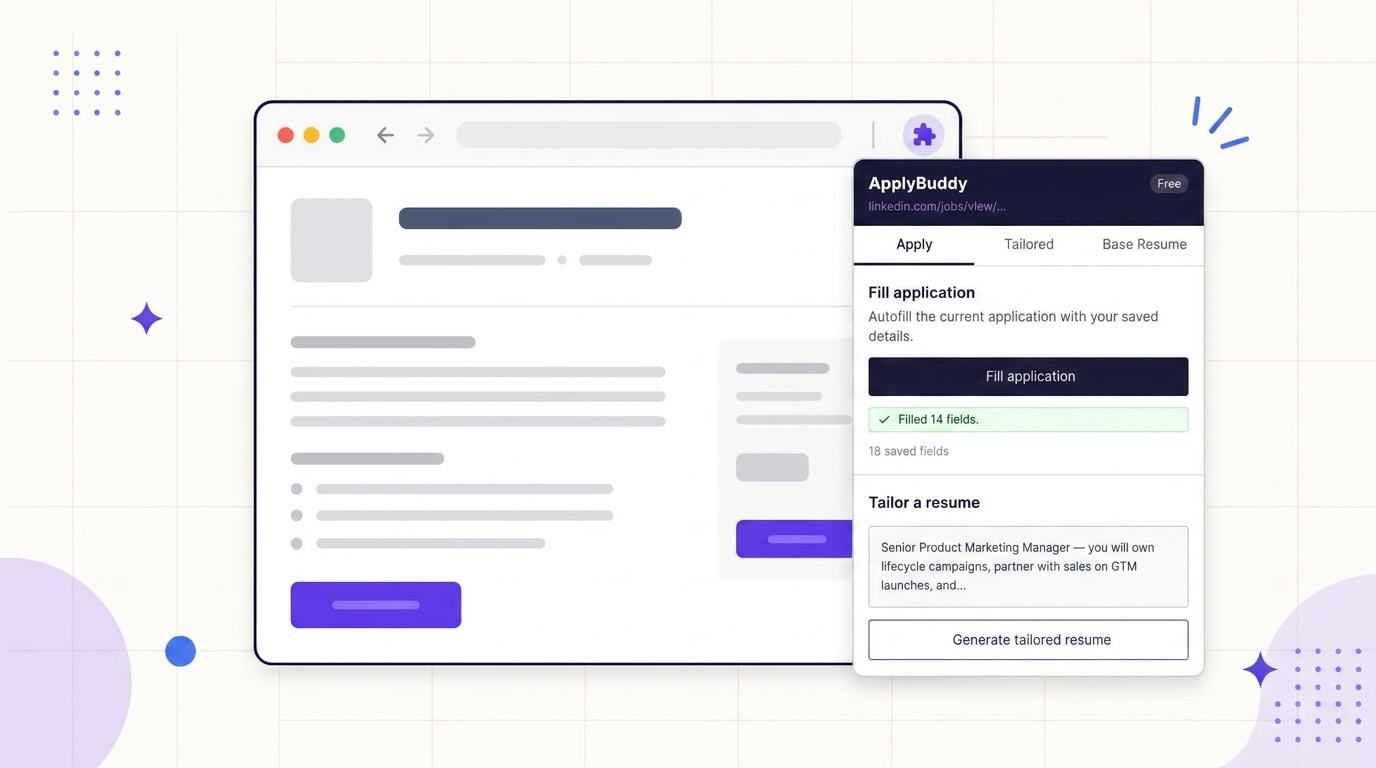
Uploading your resume and then typing the same details into an application form is frustrating. On a Workday career portal, you may still need to confirm your contact details, rebuild parts of your work history and answer the employer’s questions.
Employers configure their own portals, so the steps and fields can differ from one application to the next. A saved profile helps with repeated details, but it cannot complete every part of every form.
This walkthrough explains how to use the free ApplyBuddy Chrome extension to reduce repeated typing, prepare a tailored resume and review the fields that still need your attention.
What a Workday application actually asks for
The form varies by company. You may see sections such as:
- My Information. Name, email, phone, address, how you heard about the role, and usually the first work authorization question.
- My Experience. Work history as repeated blocks, education as repeated blocks, skills, links, and the resume upload.
- Application Questions. Company-specific questions, usually radio buttons and dropdowns.
- Voluntary Disclosures. Gender, ethnicity, veteran status, disability.
- Self Identify. More of the same, depending on the employer.
- Review. One long page, then Submit.
Contact details and links are good candidates for reuse. Work history, eligibility questions and employer-specific answers still need a careful review, even when another tool has prefilled them.
A practical order for completing the application
Prepare your tailored resume first. If the portal offers resume parsing at the start, let that finish before filling remaining fields. Follow the employer’s page order when an upload appears later, and recheck any details the upload changes.
1. Open the posting and tailor the resume first
On the job posting page, open the extension and check the detected description. If it is incomplete, paste the full description into the Apply tab. Pick your base resume, generate a tailored version, review the changes and download the PDF.
You now have a resume written for this posting, with an edits report showing what changed and which of the posting’s keywords it matched. This is the file you will upload, not your generic one.
2. Start the application and upload the tailored PDF
Click Apply and follow the employer’s sign-in or registration steps. When the form asks for your resume, attach the tailored PDF you reviewed.
If Workday offers “autofill with resume,” you can let it run. Check the imported dates, employers, job titles, education and work history for omissions or parsing errors.
3. Fill the rest from your profile
On My Information, open the extension and click “Fill application.” It walks the page, matches each input against your saved autofill profile, and writes the value. It reads Workday’s field ids as well as the visible labels, which is why it works on forms that hide their labels or use generic ones.
When it finishes, the panel tells you how many fields it filled. Review the values and complete the remaining fields. You can run it again on the next page, but check which work-history or education row received each value: the extension is not a full employment-history importer.
4. Do the rest yourself
What is left is the part that should be yours. Read on for exactly what that is.
5. Review and submit
The extension never submits. You click Submit yourself, after reading the review page. That is a deliberate boundary, not a missing feature.
What autofill fills on Workday
It can fill saved details where it finds an empty, supported field that matches them. Availability depends on the employer’s form:
- First name, last name, preferred name, full name
- Email and phone, with the phone tried in several formats until one fits the field’s length limit
- Street, city, state, postal code, country
- LinkedIn, GitHub, portfolio and website links
- Current company and current title
- Most recent school and degree
- Desired salary and availability, if you have saved them
The fill uses stored profile values rather than generating answers. Matching saved custom answers can also fill text boxes or standard dropdowns. Fields with no match are skipped, and existing values are left alone. Recognized reference and emergency-contact fields are excluded. Review the result because a field match can still be wrong.
What autofill leaves alone, and why
Knowing these limits makes it easier to spot unfinished parts of the form.
File uploads. The extension does not fill file inputs. Attach the correct resume or cover letter yourself and check the displayed filename.
Work authorization, visa and sponsorship questions. Skipped on purpose, even when the answer is saved in your profile. These answers have legal consequences and a wrong one, silently filled, is not something anyone should discover after the fact. Type them yourself, every time.
Voluntary disclosures and self-identification. Review these yourself and follow the choices the form provides. Radio buttons and checkboxes are skipped. Do not assume every demographic text field or dropdown has a dedicated block: matching saved custom answers can fill supported controls.
Radio buttons and checkboxes. Workday’s application questions are mostly these. They are skipped, because “Are you willing to relocate?” and “Have you worked for us before?” are questions you should read.
Custom dropdowns. Some Workday tenants replace standard dropdowns with their own widgets for country, state and phone type. The extension fills standard selects by matching the option text, but a custom widget that is not a real select may not take the value. If one is left empty after the fill, pick it by hand.
Repeated work-history rows. The extension does not add or reliably populate a complete set of past jobs. It uses each matched profile field once per fill, so check which row received it. Complete every required work-history entry; the attached resume does not replace required form fields.
Disabled sections. Anything greyed out is skipped.
The useful saving is repeated contact information and other matching details. The number of fields filled will vary with the page and your saved profile.
Keep your profile right, once
The fill starts with your saved profile. Check it in the dashboard before applying and update it when your details change.
The API seeds the profile from your base resume when you upload one. Open the autofill profile in the dashboard and check three things before your next application: the phone number is the one you answer, the address is complete including the country, and the current title matches how you want to be found. If you have a preferred name, add it; Workday asks.
Save the desired salary only if you want it filled. If you would rather decide per application, leave it blank and the field stays empty for you to type.
What this workflow saves
Autofill can reduce repeated typing, but the time saved depends on the employer’s form, your profile and the questions you need to answer. There is no fixed completion time.
Use the saved time to check your tailored resume, confirm the form values and give the role-specific questions proper attention.
You remain responsible for the final application. To start with feedback on your existing resume, try the free resume review. It suggests improvements to your draft; generating a version for a specific job is a separate tailoring step.
Tailor for your role
See what tailoring changes for the job you are actually applying to
Each role page shows the keywords a posting for that title expects, real before-and-after rewrites, and a free tailored resume for the posting you paste in.